Asset Extraction: Extracting Images vs. Converting PDF to JPG
Do you need to capture full document page layouts or extract raw background images? Learn how file extraction engines handle image assets.
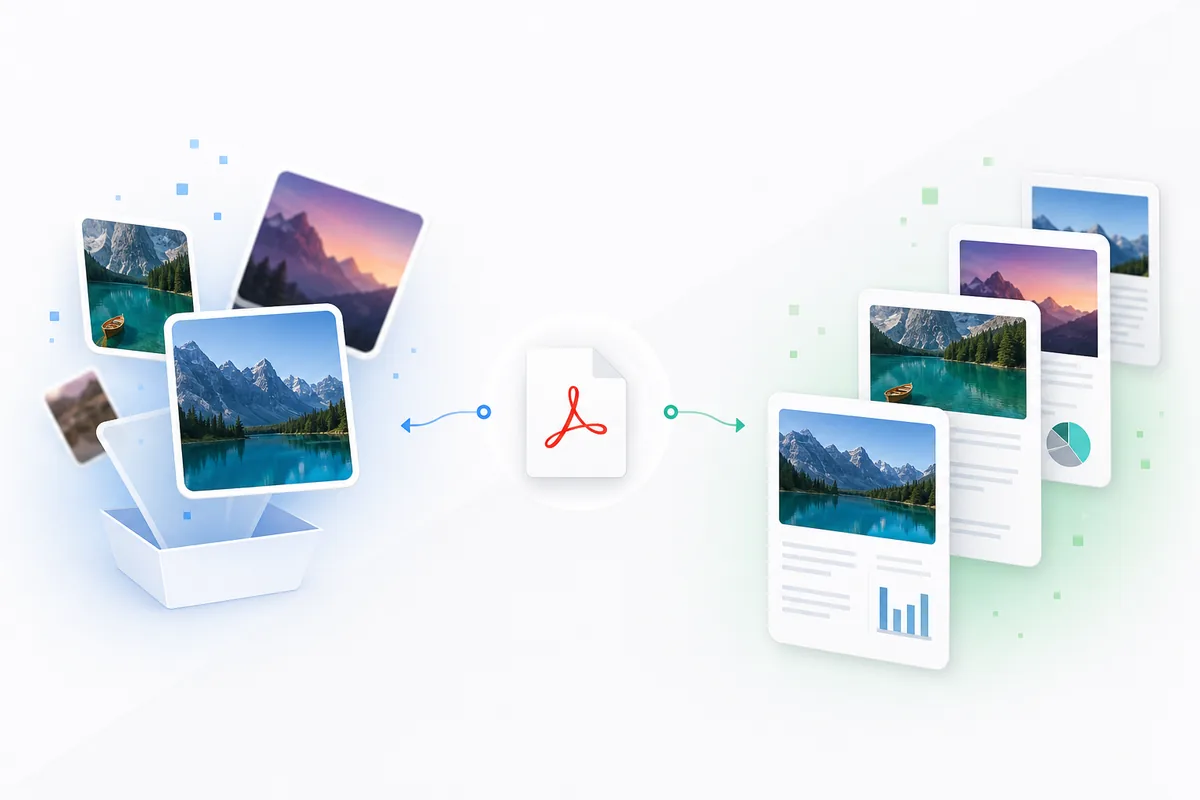
The terms look almost identical, but selecting the wrong process can leave you with blurry graphics, massive file sizes, or useless layouts. Let’s look at what happens under the hood during these two very different file conversions.
Why Media Conversion Precision Matters
In content production workflows, clean asset separation preserves original media quality. If graphic design groups or marketing teams use incorrect conversion pipelines when pulling resources from corporate documents, text paths look fuzzy and image resolutions drop. Choosing the right tool keeps your creative asset rendering sharp and fast.
Getting Started with Graphic Conversions
The Data Split Between Snapshots and File Extractions
Managing document assets requires matching tool performance to how files store data inside their backend code wrappers:
- Rasterized Canvas Models: Turning full-page vector layouts, text lines, and background colors into flat pictures.
- Embedded Media Objects: Extracting original binary graphic files from the document stream cleanly.
- Resolution Quality Controls: Managing dot densities (DPI) to prevent pixelation across web designs.
- Alpha-Channel Transparency Paths: Preserving background transparency layers for transparent logo files.
Image Extraction Task Choices
- Full Canvas Page Renders: Converting complete single sheets into flat graphic files to share pages easily in online threads.
- Source Image Extractions: Bypassing text lines and background grids completely to pull out raw background photos in their original quality.
Essential Graphics Utilities
Cloud Graphic Transformation Engines
Web utilities handle canvas conversions directly inside your browser tab, saving images cleanly without needing heavy desktop design apps.
Document Workspace Integration
To configure document elements and fix orientation issues smoothly before exporting graphic outputs, track our foundational ultimate guide to pdf editing. To combine graphics, view our how to merge pdf files guide.
Best Practices for Graphic Extraction
1. Choose Page Renders to Share Layouts
Use page-to-JPG conversions when you want to showcase full document designs online while locking text layers from direct changes.
2. Run Image Extraction to Save Photos
Use source extractions when you need the original high-resolution photos back for external print or editing layouts.
3. Match DPI Scaling Parameters
Set your rendering density to 300 DPI for physical printing projects and keep 150 DPI targets only for quick web sharing.
4. Use PNG Exports to Keep Transparency
Choose PNG output profiles when extracting logos to preserve background transparency across web layouts.
5. Verify Text Boundaries Post-Process
Confirm that text lines stay perfectly readable when converting data reports into flat graphic presentation arrays.
Common Graphic Conversion Tasks
Converting Document Pages to JPG Images
- Drop your multi-page report file into our secure online pdf to jpg converter.
- Select your target image resolution limit configuration from the interface option list.
- Run the conversion script to render text lines and graphics into flat images.
- Download your high-resolution page pictures for quick social or portfolio sharing.
Extracting Embedded Photos Cleanly
- Load your asset file directly into our tool to extract images from pdf.
- Run the extraction pipeline to scan the internal object data paths.
- Pull out the raw background graphics separate from text overlays instantly.
- Save your extracted source photo assets into clean local folder tracks.
Advanced Graphic Conversion Techniques
Automated Graphic Pipeline Integrations
Link design servers to cloud conversion scripts, automatically exporting flat page views into web galleries upon file uploads.
Vector Shape Path Conversions
Convert document drawing lines directly into editable web layouts, preserving geometric designs perfectly across production code paths.
Troubleshooting Common Issues
Text Looking Fuzzy on Image Pages
This issue points to low resolution configurations during rendering tasks. Increase your export settings to 300 DPI to protect character edges.
Extra Graphic Assets Bloating Image Lists
Image extraction pulls out every asset, including tiny background icons and accent bars. Use full page renders to keep clean single sheets.
Extracted Photos Losing Color Balance
CMYK print settings cause color distortions on digital monitors. Convert file color spaces to standard sRGB layouts to keep visuals natural.
Conclusion
Choosing between full page rendering and raw file extraction protects your media quality and keeps asset handling fast. By tracking document layout trees, setting target image resolutions, and using fast web infrastructure, your team converts graphic resources reliably from any device configuration.